


Samsung Email
4.4156.05K Reviews
App Specs
- Version
- 6.2.13.1
- Updated On
- License
- Free
- Downloads
- 1,000,000,000+
- Developer
- Samsung Electronics Co., Ltd.
- Categories
- Productivity
- Platform
- Android
Screenshots
 Analysis by AppCompare
I judge an email app less by how many buttons it offers than by whether I can keep separate parts of my life from tangling together. Samsung Email works best for me as a practical inbox for people who want to check several accounts, act on messages quickly, and get back to the rest of their day. It is a productivity app from Samsung Electronics Co., Ltd., and its appeal is strongest if you use a Galaxy device and prefer an email client that feels at home there.
A repeatable routine beats inbox heroics
My most useful approach is to treat the app as a place to process mail, not as a task manager. I check new messages, reply when a response is genuinely quick, and leave anything requiring focused work for a calmer moment. That simple boundary helps keep email from taking over every spare minute, especially when more than one account is connected.
For example, on a weekday morning I might scan for an appointment change, answer a short work question, and flag mentally—not just leave open—the longer message that needs a careful reply. Later, I can return to it with the context and time it deserves. Quick Filters make the initial pass more manageable: checking unread messages or messages with attachments helps me find what needs attention without paging through the whole inbox.
A small but worthwhile habit is to review the sender and subject before opening an attachment. It is an easy way to slow down when a message looks unexpected, and it keeps a busy inbox from encouraging careless taps. I also try not to use the unread state as a substitute for a reminder; once I have read a message, I decide what to do with it rather than relying on it to stay visible.
Settings that shape the day
The app lets me adjust notification alerts and the way messages are viewed, so I would spend a few minutes setting those choices before deciding whether its workflow suits me. Notifications are most useful when they signal mail I actually need to see promptly. If every account produces a constant stream of alerts, the convenience can turn into interruption, so I prefer to be deliberate about which inboxes deserve my attention throughout the day.
View preferences matter too. A layout that makes long threads easy to follow may be less comfortable for someone who likes to scan individual messages quickly. I would try the available viewing options with a real conversation rather than judging them from a quiet inbox; replies, forwarded messages, and attachments are where a display choice starts to affect everyday use.
Samsung Email is free, has an Everyone age rating, and is at version 6.2.13.1. It has a 4.4 average from around 2.5 million ratings, with more than a billion installs. Those figures suggest a well-established app, but they do not tell me whether its particular account setup or notification style will suit an individual. I would test those basics early, especially if I depend on mail for work.
Worth Reading Before You Choose

Flipboard Shows What News Apps Must Do Beyond the Feed

Switching to Android Auto Means Rethinking Your Driving Routine

Google Calendar Makes a Crowded Week Easier to Manage

Ludo King Makes the Most of the Minutes Between Plans

Baby Panda World Brings Quick Play to Modern Phones, but Its Game Library Feels Busy

ESPN’s Live Game View Makes Following Close Games Easier
Shortcuts for handling common messages
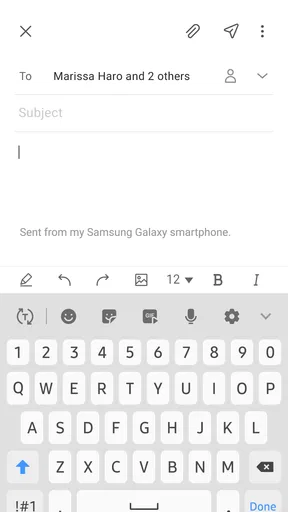
Rich text editing is useful when a reply needs more shape than a sentence on a screen. I can use bold or italics to make a key point easier to spot, but I would keep formatting restrained in ordinary correspondence. A short, clear answer is usually more helpful than a heavily styled one, and simple formatting is less likely to distract the reader.
Quick Filters are most valuable when I use them with a purpose. Looking for unread mail helps me catch what I have not reviewed; looking for attachments is handy when I am trying to find a document someone sent. These are small actions, but they cut down on aimless scrolling. I would not expect a filter to decide which message is important, though: that still takes judgment, particularly when a message is time-sensitive or comes from an unfamiliar sender.
For people who already use Samsung apps, the stated integration may make the client feel more natural in an existing Galaxy routine. That is a practical reason to try it, not a reason to assume every service will behave identically. If you use a mixture of devices or platforms, check that the way you read and send mail stays comfortable across your usual setup before making it your only inbox.
Where I would be cautious
Email reliability depends on more than the app: account settings, connection quality, and the mail service all matter. I would send a test message and confirm that replies and attachments arrive as expected before relying on a new setup for an important deadline. If something appears delayed, checking the connection and account configuration is a more useful first move than assuming the app itself has lost the message.
The app is a strong fit for someone who wants a straightforward way to manage multiple accounts, especially on a Galaxy phone. It is less compelling if you want email to double as a full project planner, or if your team depends on a particular collaboration workflow that another client handles better. In those cases, a dedicated task or team tool alongside email—or a client built around that workplace—may be the better choice.
The User Experience
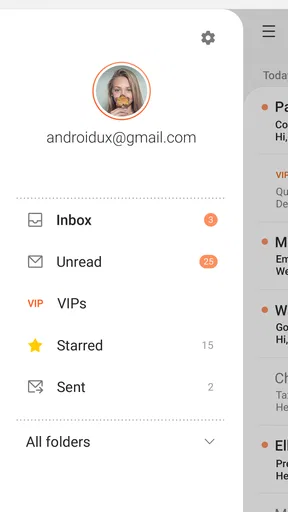
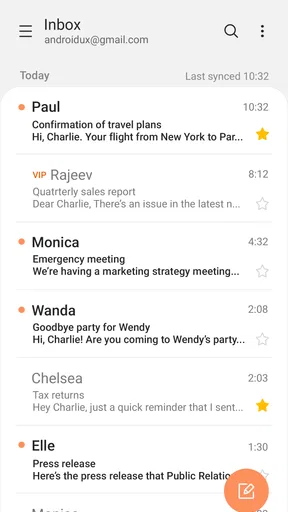
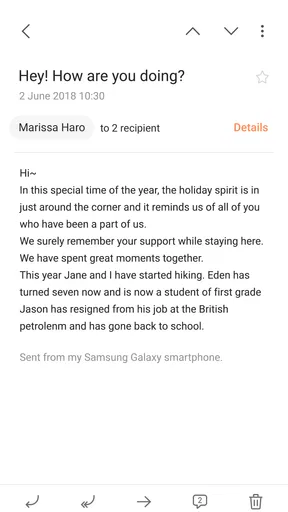
From the moment you open Samsung Email, it feels like a breath of fresh air. The interface is clean and intuitive, which means you don't have to be a tech wizard to navigate through your emails. Everything you need is right at your fingertips. The app supports multiple email accounts, so whether you're juggling work and personal emails or just have a ton of subscriptions, it has you covered.
Customization and Features
Customization is where Samsung Email really shines. You can tweak the settings to suit your preferences, from notification alerts to the way you view your emails. It's like having a tailor-made app just for you. And speaking of features, the app comes loaded with some nifty ones:
- Quick Filters: Easily sort your emails with a few taps. Whether you're looking for unread messages or emails with attachments, it's all incredibly simple.
- Rich Text Editing: Ever needed to send a professional email with more than just plain text? Samsung Email lets you format your emails with bold, italics, and more.
- Integration with Samsung Apps: If you're already in the Samsung ecosystem, this app plays nicely with other Samsung apps, making your life even easier.
Security and Privacy
In today's digital age, security is king, and Samsung Email takes this seriously. The app offers robust security features to ensure your information stays private. With support for encryption and advanced spam filters, you can rest easy knowing your data is safe.
Moreover, Samsung's commitment to privacy means that your emails are only accessible by you. No unwanted eyes are getting a peek at your private conversations. It's like having a digital safe for your emails.
Performance and Reliability
When it comes to performance, Samsung Email is a powerhouse. The app is built to handle heavy loads without breaking a sweat. Emails sync seamlessly across devices, ensuring you're always up to date. Plus, the app's lightweight design means it won't hog your device's resources, keeping everything running smoothly.
"I never have to worry about my emails being delayed or missing. Samsung Email just works, every time."
Reliability is crucial when it comes to email, and Samsung Email delivers consistently. Whether you're on Wi-Fi or mobile data, your emails are always synced and ready to go.
Final Thoughts
So, is Samsung Email worth downloading? Absolutely! Whether you're a busy professional, a student, or just someone who likes to keep things organized, this app is a game-changer. It's packed with features that make managing emails a breeze, all while keeping your data secure and your experience seamless.
Don't just take my word for it—give it a try and see how it transforms your email experience. Who knew managing emails could be this easy and even a little fun?
Choosing the right inbox for your setup
The main comparison I would make is with the email app already on your phone and with webmail in a browser. A browser can be convenient when I am switching between services on a computer, while a dedicated client is better for checking accounts in one mobile routine. Samsung Email’s appeal is its multiple-account approach and its fit with Galaxy use; it is not automatically the best option for someone who wants one provider’s particular features or a shared team inbox.
If you rely on a particular account provider, I would add that account and test the actual tasks I do every week: reading a long thread, replying, sending a formatted note, and opening an attachment. An app can look tidy in an empty inbox but feel different when real conversations accumulate. This quick trial also answers a practical question: whether the account setup and message flow are comfortable enough to replace my current habit.
People who work across several platforms should weigh familiarity against consistency. Samsung’s integration is a plus when the rest of a person’s routine already centers on Galaxy devices and Samsung apps. If colleagues use a workplace client with shared calendars, team mailboxes, or a specific collaboration process, I would choose the tool that supports that workflow rather than forcing ordinary email to cover every job.
Useful boundaries for busy inboxes
One trade-off with multiple accounts is that convenience can blur boundaries. I would keep personal and work addresses easy to distinguish when scanning messages, and avoid replying from the wrong account by making the sender identity part of my final check. That small pause matters most when I am answering quickly from a notification or moving between unrelated conversations.
Another useful habit is to treat attachment searches as retrieval, not as a filing system. Finding messages that include attachments can save time when someone asks for a document again, but it does not replace naming and storing important files in a place I can find independently. Email is a record of the exchange; it is not always the safest or clearest home for the only copy of a file I need.
For privacy-sensitive correspondence, I would be careful not to read broad claims as a substitute for checking the settings and practices relevant to my account. The original app text describes encryption support and spam filtering, but safe use still depends on sensible handling: verifying unexpected senders, avoiding suspicious attachments, and using the protections offered by the account itself. That is a more realistic standard than assuming any email client can make careless behavior risk-free.
Who should try it—and who may prefer another app
I would recommend trying it if you use a Galaxy device, want several email accounts together, and value a clean mobile routine with adjustable notifications, message views, filters, and basic rich-text replies. It also makes sense for students or professionals who mostly need dependable everyday correspondence rather than a complete system for managing projects and team decisions.
I would be more hesitant if email is only one part of a demanding workplace process. Someone who needs team assignment features, shared triage, or a tightly connected calendar-and-task workflow should compare the tools their organization already supports. Likewise, if you switch often between operating systems and want the same interface everywhere, a platform-neutral client may feel more consistent than an app whose strongest appeal is its place in the Samsung environment.
There is no need to move every account at once. I would start with one less-critical address, adjust its alerts, and try the filters and display choices for a few days. If I can find unread messages and attachments without extra effort, and replies go out from the right account, then I have a reason to add more. If the setup feels awkward, keeping the existing client is a perfectly sensible outcome.
What the popularity does—and does not—tell me
The app was released on January 15, 2017, and its reach reflects how familiar it has become to many Android users. I see its 156,000 reviews alongside its ratings as a sign that plenty of people have formed an opinion through regular use, not as proof that every account will behave the same way. A large audience is reassuring when choosing a mainstream utility, but personal fit still comes down to setup, habits, and the mail services involved.
Because Samsung Email is free, trying it does not require a purchase decision. The more meaningful cost is the time spent setting up accounts and adjusting the way messages arrive. I would make that small investment only if consolidating inboxes or getting a more comfortable Galaxy workflow solves a real annoyance. If my current app already handles those tasks cleanly, popularity alone is not a compelling reason to switch.
My final recommendation
My strongest recommendation is to give the app a practical trial rather than expecting it to transform email. Add the accounts you genuinely check, make notification choices that protect your attention, and use filters for specific retrieval tasks instead of scrolling without a plan. That approach brings out its useful everyday strengths without asking it to be a task manager, archive strategy, or team collaboration platform.
Samsung Email earns its place for people who want a capable, familiar inbox on a Galaxy device and are willing to shape it around their own routine. Its best qualities are the straightforward handling of multiple accounts and small tools that make message review less fiddly; its limits show when the job calls for deeper collaboration or a consistent experience across different platforms. For ordinary personal and work correspondence, I would happily put it on the shortlist and see whether it fits the way you actually manage your mail.
Pros
- Smooth integration with Samsung devices.
- Supports multiple email accounts seamlessly.
- Customizable notifications and alerts.
- Rich text editing for composing emails.
- Efficient spam filtering and management.
Cons
- Limited features compared to third-party apps.
- Occasional sync issues reported by users.
- No built-in calendar integration.
- Interface can feel cluttered at times.
- Requires Samsung account for full functionality.
FAQs for Samsung Email
What features does Samsung Email offer?
Samsung Email provides a robust set of features designed to enhance email management. It supports multiple accounts, including Exchange, IMAP, and POP3. Users can enjoy a seamless experience with its intuitive interface, customizable notifications, and powerful spam filtering. Additionally, it integrates with Samsung’s calendar and contacts for a unified experience.
Is Samsung Email secure for managing sensitive information?
Yes, Samsung Email is designed with security in mind. It supports S/MIME and SSL encryption protocols to protect your emails and attachments. Users can also set up secure login methods and benefit from Samsung’s Knox security platform, which adds an extra layer of protection against unauthorized access and data breaches.
Can Samsung Email sync across multiple devices?
Samsung Email can sync across multiple devices as long as you log in with the same account on each device. It supports real-time synchronization for emails, calendars, and contacts, ensuring that your information is up-to-date no matter where you access it. This is especially useful for users who switch between mobile and desktop devices.
What customization options are available in Samsung Email?
Samsung Email offers various customization options to suit user preferences. You can personalize the app’s theme, adjust the appearance of the inbox, and configure notification settings. Users can also create custom folders, filters for sorting emails, and set priority and VIP contacts to ensure important messages are easily accessible.
Does Samsung Email support offline access?
Yes, Samsung Email supports offline access, allowing users to read, compose, and organize emails without an internet connection. Any changes made offline, such as drafts or deletions, will automatically sync when the device reconnects to the internet. This feature is particularly useful for users who frequently travel or experience inconsistent connectivity.


